Grow your list

Turn visitors into contacts you can message.

A landing page, a sign-up form on your own site, and a popup that appears at the right moment — three ways to collect a sign-up. Run two versions of a page against each other and keep the one that wins. Every contact you collect can be tagged, sorted by rules and sent a first message without you doing it by hand.

Landing pagesEmbedded formsOn-site popupsA/B tests with a winner
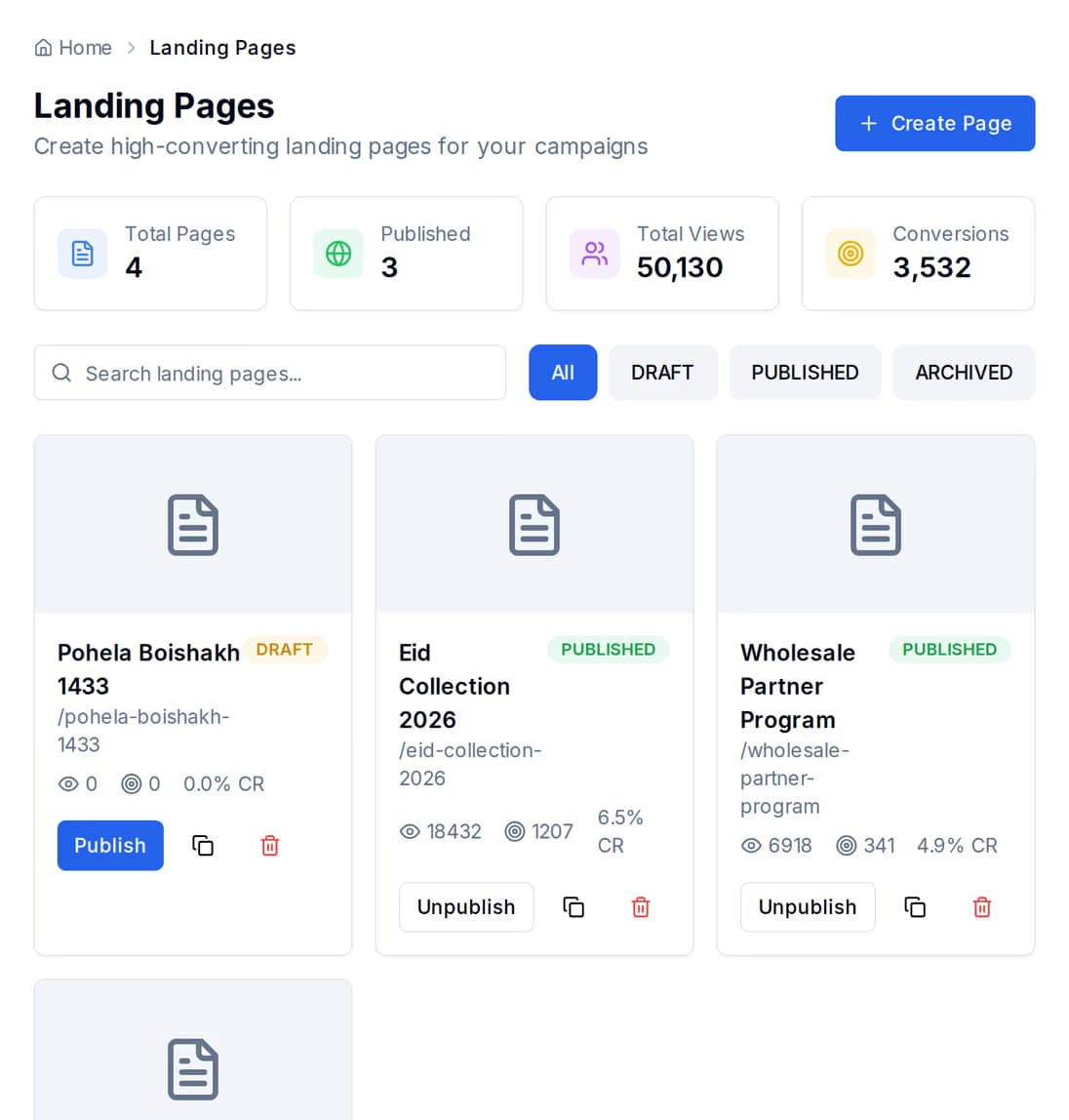
The landing pages list, showing each page with its published web address and its view and sign-up counts.

Three places to ask for a sign-up.

You do not need all three, and you do not need a website to start. Pick the one that matches where your traffic already is — they all feed the same contact list.

No website needed

A landing page

Start from a ready-made page — lead capture, a product launch or an event sign-up — change the words, and publish it at its own web address. Share that link in a bio, an ad or a message. Each page keeps its own view and sign-up counts.
One line of code

A form on your own site

Choose the fields you want, then paste one short line of script into any page you can edit. The form is drawn right there on the page, and every answer comes back to QuickGrow. Pause it or swap the fields later without touching your site again.

Five formats

A popup on your own site

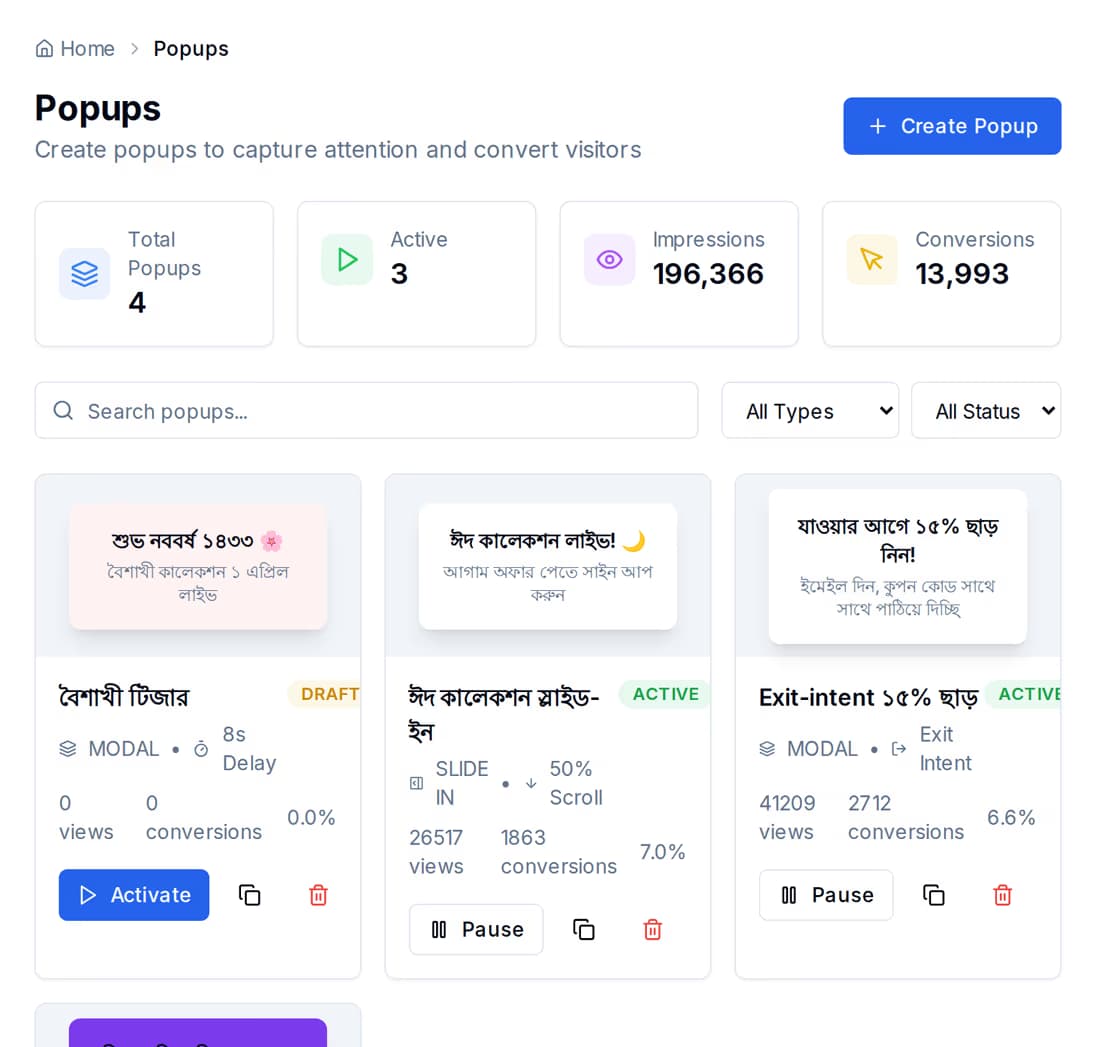
A box in the middle, a slide-in from the corner, a bar along the edge, a full-screen message, or one set into the page. Same one line of script. You see how many people saw it, how many closed it and how many signed up.

All three land in the same place — one contact list you can message by email, SMS or WhatsApp.
Landing pageForm on your sitePopup on your site
Needs a website of your ownNoYesYes
How you set it upStart from a templatePaste one line of codePaste one line of code
Where people meet itA link you shareSitting in the pageAppears over the page
When it showsWhenever the link is openedAlways onAfter a wait you set
Two versions tested against each otherYesNoNo
Numbers you get backViews, sign-ups, rateViews, sign-ups, rateViews, closes, sign-ups, rate
Turn on and off from QuickGrowYesYesYes
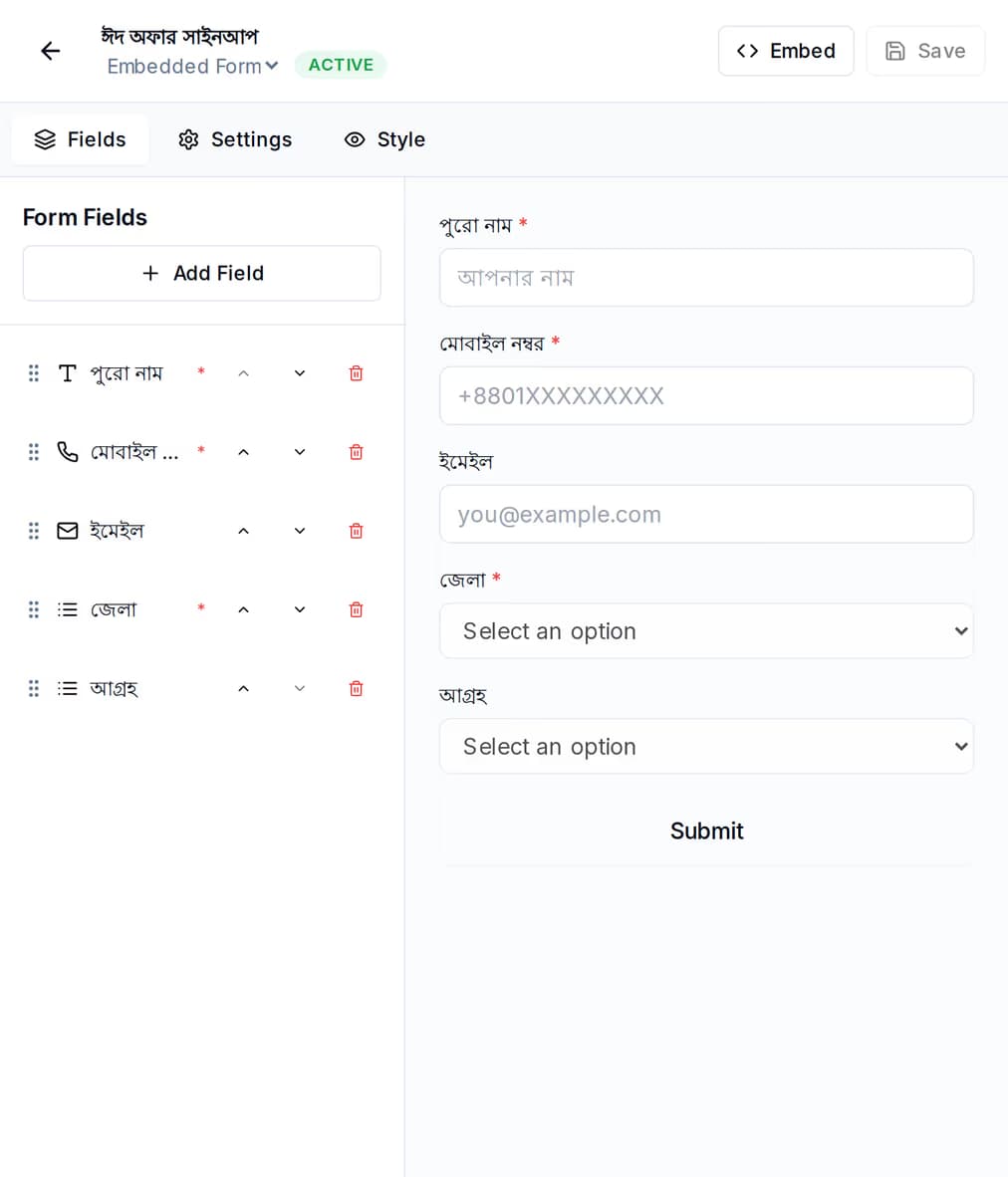
The form builder: the list of fields on the left beside a live preview of the sign-up form it produces, with the form marked active.
Embedded forms

Build the form once. Paste one line.

Pick your fields, see the form take shape beside you, then copy the snippet QuickGrow gives you and paste it into any page you can edit. The script is served by us, so the form on your site updates when you change it here — no second visit to your web developer.

  • Fields for a name, an email address, a phone number, a number, a dropdown or a longer answer — mark the ones people must fill in
  • Copy the embed snippet from the form itself — one script line that names the form
  • A hidden field bots fill in and people never see, so junk sign-ups are dropped instead of reaching your list
The popups list, showing popups of four different trigger types with the impressions, conversions and conversion rate each one earned.
On-site popups

Ask at the moment they are still reading.

A popup is its own thing here, not a setting buried inside a form. It has its own list, its own on and off switch, and its own numbers — so an offer that nobody signs up for is obvious, and you can turn it off in one click.

  • Five formats: a box in the middle, a slide-in, a bar, a full screen, or set into the page
  • Six moments to choose from in the builder — a timed wait, a scroll depth, someone heading for the exit, a click, the page loading, or a spell of no activity
  • Show the same form inside a popup, so you are not rebuilding the fields twice

Run two versions of a page. Keep the one that wins.

Guessing which headline works is expensive. On a landing page you can run a second version alongside the first, decide what share of your visitors sees it, and let the page tell you which one collected more sign-ups.

  1. Make a second version

    Copy the page you already published and change the part you are unsure about — the headline, the offer, the number of fields in the form.

  2. Choose the split and start

    Write a second version of the page and record the share of traffic you intend it to get. The two versions are held side by side so you can compare them and pick a winner.

  3. Watch both sides

    Views and sign-ups are counted separately for each version, with the rate for each and the difference between them. It also tells you when the gap is still too small to trust.

  4. End it and keep the winner

    End the test and the winning version becomes the live page. You can also stop a test part-way and come back to it, or throw it away.

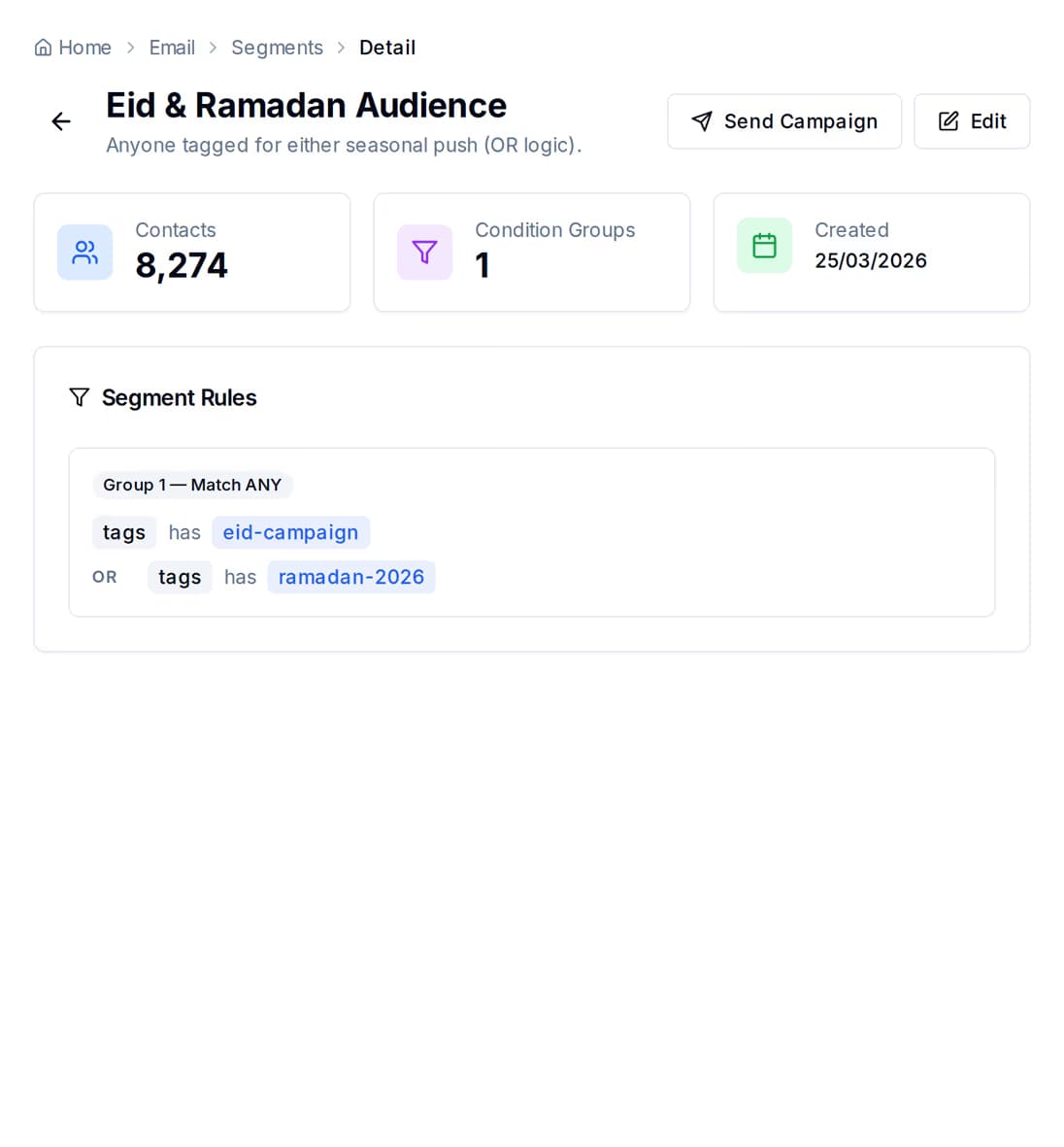
A rule-based segment: the count of contacts it currently matches shown beside the condition rows that produce it.
After the sign-up

A new contact is not just a row in a list.

Every sign-up you collect becomes a contact with a source, tags and a record of how engaged they are. A segment is a set of rules over exactly those things — so it keeps itself up to date instead of going stale the day after you build it.

  • Rules on where the contact came from, their tags, their status, how engaged they are, when they last replied, and when they were added
  • Match all the rules or any of them, and see how many contacts qualify before you save the segment
  • The matching count is shown on the segment itself, and you can open the list of people behind it

The first message can send itself.

Collecting the contact is only useful if something happens next. An automation is a set of steps that starts on its own when something real happens.

What starts it

Real triggers, not a schedule you have to remember

A contact is added. A contact is tagged. A form is submitted. Someone opens or clicks a campaign. A date arrives. Any of those can start a journey.

What it does

Steps you can read at a glance

Send a message, add a tag, update a field, wait a while, split the path on a condition, or call another system of yours. Chain them into the welcome sequence you would otherwise send by hand.

The tools come with the platform. You pay to send.

There is no separate bill for landing pages, forms or popups. You pay a platform fee for the tooling, and then for the messages you actually send — and buying managed volume pulls that platform fee down.

Comes with the platform

  • Landing pages, templates and publishing
  • A/B tests, with the winner applied to the live page
  • Embedded forms and on-site popups

You pay for what you send

  • Email — use our sending setup or bring your own
  • SMS — branded sender name or plain, bought separately
  • WhatsApp — priced by the kind of message you send

Ways to pay less

  • Buying managed volume waives part of the platform fee
  • Buying enough Email and SMS volume at a high enough level waives it entirely
  • Bring your own sending setup and you pay only the platform fee

Before you sign up.

Do I need a website?

Not for a landing page. You publish it from QuickGrow and it gets its own web address you can share in a bio, an ad or a message. Forms and popups do need a site of your own — somewhere you can paste one line of code.

How hard is it to put a form on the site I already have?

You copy one line of script from the form and paste it where you want the form to appear. That is the only change your site ever needs — changing the fields, pausing the form or switching it off all happen in QuickGrow afterwards.

How do I know which version of a page works better?

Run both. You make a second version, and the results view compares the two sides — lift, and whether the difference is still too small to trust. When you end the test, the winning version is written onto the live page, so picking a winner actually changes what visitors see rather than just recording a preference.

Put a sign-up form on your site today.

Start with one page or one form, see the sign-ups arrive, and add the follow-up once you know it works.