
Zapier

No app in the directory. Wire it up yourself.

There is no QuickGrow app in the Zapier directory, and this page is not going to pretend otherwise. What QuickGrow does have is a signed webhook for every message you send through the API, a step in the journey builder that calls any URL you give it, and a REST API a Zap can call back into. Point them at a Catch Hook and a Webhooks by Zapier action, and you have a two-way connection you built in an afternoon.

Four signed message eventsA webhook step in any journeySend, contact and tag actions over the APINothing to install

What exists, and what doesn't.

Most integration pages open by telling you how easy everything is. This one opens with the part you would otherwise find out an hour in.

There is no QuickGrow app to search for

Search Zapier for QuickGrow and you will find nothing. There is no authorise screen, no ready-made trigger list, no pre-built actions. The Zapier tile inside Settings → Integrations stores an API key and then does nothing with it — it is unfinished, and switching it on will not start a Zap.

⚠ If a page ever told you otherwise, it was wrong. This is the correction.
The pieces underneath are all real

Signed webhooks for four message events, with retries and a delivery record for each attempt. A webhook step you can drop into any journey, pointed at any URL. A REST API that sends messages and manages contacts. Zapier's own Catch Hook and Webhooks actions bolt onto all three without a directory listing in sight.

message.sentmessage.deliveredmessage.failedmessage.bounced

Three ways to start a Zap.

Every one of these ends the same way: a POST at a Catch Hook URL you paste in. They differ in what sets them off and how soon Zapier hears about it.

Four events

Message webhooks

Add your Catch Hook URL in Settings → Developer, tick the events you want, and QuickGrow posts to it when a message goes out, is delivered, fails, or bounces. Each delivery is signed with a secret only you and QuickGrow hold, so your Zap can tell a real event from a stray request.

Any URL, any journey

A webhook step in a journey

The journey builder has a Webhook action alongside send, wait, tag and branch. Give it a Catch Hook URL, pick the method, and add your own headers and body. When a contact reaches that step, Zapier gets the call — mid-journey, exactly where you placed it.

When you want a full picture

A scheduled read

Webhooks only cover the messages you sent through the API. If you want campaign and journey sends too, give a Zap a schedule and a Webhooks by Zapier GET on the messages or contacts list, filtered to everything created since the last run.

POST → your Catch Hook
{
  "id": "evt_7c1e...",
  "event": "message.delivered",
  "createdAt": "2026-08-26T11:04:18Z",
  "data": {
    "message": {
      "id": "msg_9fA2",
      "channel": "whatsapp",
      "status": "delivered",
      "to": "+8801700000000",
      "tags": ["order-update"],
      "metadata": { "orderId": "INV-1042" },
      "sentAt": "2026-08-26T11:04:11Z",
      "deliveredAt": "2026-08-26T11:04:17Z",
      "failureReason": null
    }
  }
}

# the fields under "metadata" are the ones you sent — your own order id
# comes straight back out, so the Zap knows which order it is looking at

Four steps, and none of them is an approval queue.

You are pasting a URL into one form and a key into another. Nothing here waits on a review, a listing, or anyone at our end.

  1. Start a Zap with a Catch Hook

    In Zapier, pick Webhooks by Zapier as the trigger and choose Catch Hook. Zapier gives you a URL and then sits waiting for a first payload so it can learn the field names.

  2. Add the endpoint in QuickGrow

    Settings → Developer → Webhooks. Name it, paste the Catch Hook URL, and tick the events you care about. The signing secret is shown once, at that moment — copy it before you close the panel.

  3. Press Test

    The Test button fires a sample straight at your Catch Hook and shows you the status code and the reply that came back. Zapier picks the sample up and your fields are ready to map — no waiting for a real message to happen along.

  4. Add the action, then go live

    Give the Zap something to do — a row in a sheet, a message in a channel, or a Webhooks by Zapier POST back into QuickGrow. Turn it on. From then on it runs on its own.

The other half: what a Zap can do here.

A Webhooks by Zapier action and one API key turn any Zap into a sender. The same reference the API is documented in tells you the exact shape of every call.

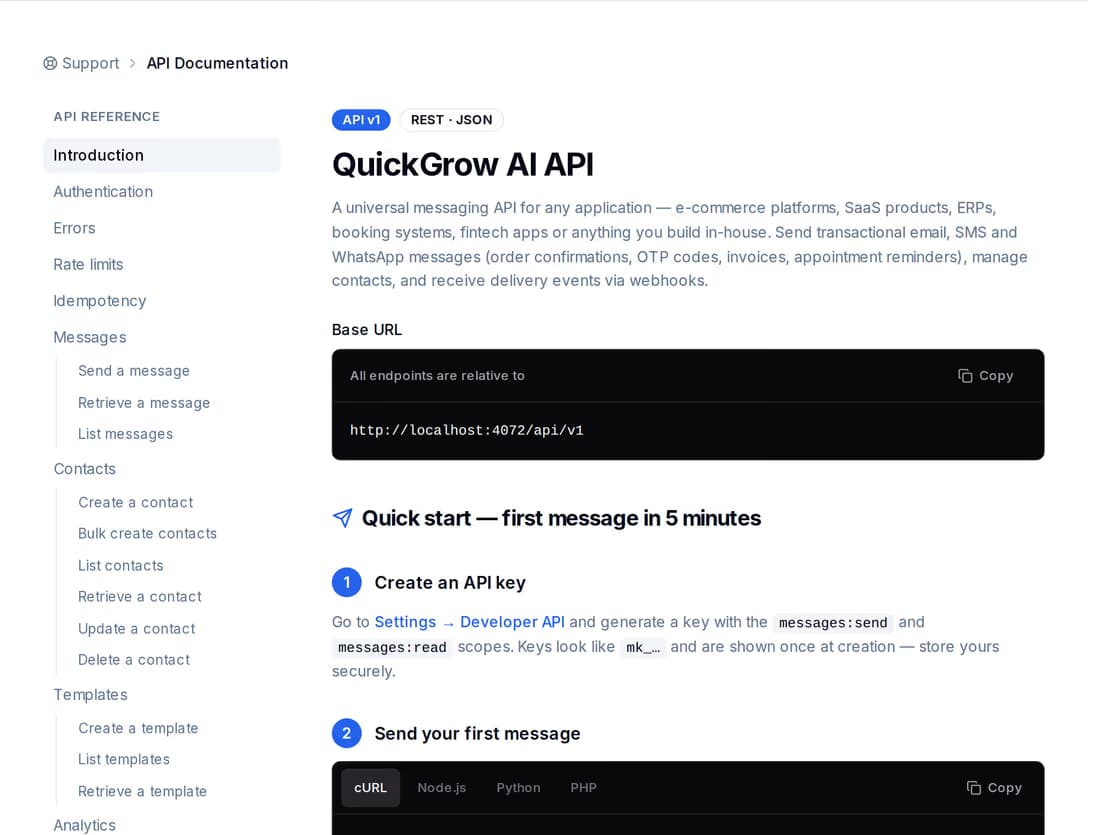
The QuickGrow API reference open in a browser: the endpoint list on the left beside the request and response detail for a single endpoint.
One key, one header

Send a message. Create a contact. Add a tag.

Authenticate with a single X-API-Key header and call the endpoint you need. The reference lives inside the product, so the shape you read is the shape that is running.

  • Send email, SMS or WhatsApp from one endpoint — inline text, or a template you reference by id with your variables filled in.
  • Create a contact, update one, put tags on it, or read it back; there is a bulk create for up to a thousand at a time.
  • Read any message back by id to see its state, when it went and, if it failed, why.
Zapier action · Webhooks by Zapier → POST
# Tell the customer their order is ready
curl https://server.quickgrow.ai/api/v1/messages \
  -H "X-API-Key: mk_..." \
  -H "Content-Type: application/json" \
  -d '{
        "channel": "whatsapp",
        "to": "+8801700000000",
        "templateId": "tpl_order_ready",
        "variables": { "orderId": "INV-1042" },
        "tags": ["order-update"],
        "metadata": { "orderId": "INV-1042" }
      }'

# Put a tag on the contact instead
# PATCH /api/v1/contacts/:id   {"tags": ["vip", "repeat-buyer"]}

Pick by what has to set it off.

Most people end up with two of these running side by side — webhooks for the sends they make themselves, and a scheduled read to catch everything else.

Webhooks only fire for messages sent through the API. Campaign sends and the sends inside a journey do not produce events — but they are all in the message list, which is why a scheduled read is worth pairing with them.
Message webhooksJourney webhook stepScheduled read
What starts itA message you sent through the API goes out, is delivered, fails or bouncesA contact reaches the webhook step you placed in a journeyZapier's own timer — every fifteen minutes, hourly, or daily
How soon Zapier hearsStraight away, and again on a retry if your Zap was downWhile the journey is runningOn the interval you picked
Where you set it upSettings → Developer, in QuickGrowThe journey builder, in QuickGrowThe trigger step, in Zapier
What proves it came from youA secret only you and QuickGrow hold, sent with every deliveryWhatever headers you choose to put on the stepYour Zap made the call, so there is nothing to prove
Needs an API keyNo — an endpoint and its secretNoYes, one scoped to reading

What arrives, what happens when it doesn't, and what stays yours.

What reaches your Zap

  • Four events: message sent, delivered, failed and bounced.
  • Each one carries the message id, the channel, the recipient, your own tags and reference fields, and the times it was sent and delivered.
  • A failure carries the reason and the code with it, so a Zap can branch on why rather than just that.

If your Zap is down

  • Five attempts in all: straight away, then after five seconds, a minute, five minutes and half an hour.
  • Every attempt is recorded with its status code, the reply and how long it took.
  • The Developer screen shows the delivered and failed counts for each endpoint and when it last heard from you.

Keeping it yours

  • Roll the signing secret whenever you want, through the API, without deleting the endpoint.
  • Run several endpoints at once — one Catch Hook for failures, another for deliveries.
  • Every outgoing call is checked before it is made, so an endpoint cannot be aimed at something internal.

Before you build it.

Is there a QuickGrow app in the Zapier directory?

No. You will not find QuickGrow when you search for an app inside Zapier, and there is no one-click authorise screen. Everything on this page is built with Zapier’s own Webhooks by Zapier trigger and action, which are the general-purpose pieces every Zapier plan includes for exactly this situation.

There is a Zapier tile in Settings → Integrations. What does it do?

Not what you would hope. That tile asks for an API key and stores it, but nothing in QuickGrow reads it or sends anything anywhere as a result. It is unfinished, and connecting it will not start a Zap. Use the webhook route on this page instead — that one is wired all the way through.

What can a Zap do back inside QuickGrow?

Anything the REST API covers, with a Webhooks by Zapier action and an API key. Send an email, SMS or WhatsApp message; create a contact or update one; put tags on a contact; read a contact or a message back; pull delivery statistics. Give the key only the access that Zap needs and nothing more.

Can a Zap start an automation journey?

No. Journeys are started from inside the portal or by a date on a contact record, and the endpoint that fires tag and contact events is not reachable with an API key. So a Zap can add a tag to a contact, but the tag will not set a journey running. The dependable automatic trigger is the date-based one: put a date on a contact and QuickGrow acts on it a set number of days before or after, on its own.

Do I need a developer for this?

For the outbound half, no — a Catch Hook URL pasted into a form and a Test button. For the half that sends messages back you are filling in a Zapier action with a URL, a header and a small block of JSON; if that is unfamiliar territory, half an hour with whoever looks after your site will settle it for good.

Will a message sent from a Zap go out immediately?

Email will. SMS and WhatsApp are checked against consent, a quiet-hours window and a per-contact limit before they go — in Bangladesh the window runs from nine at night to eight in the morning, and it applies to codes and confirmations too. Build your Zap so a blocked send is handled rather than assumed.

Build the connection yourself. Keep it for good.

An API key, a Catch Hook URL and a Test button. Email, SMS and WhatsApp all sit in the same account, on one bill.