The same person, three times
You import the new file on top of the old one and everybody who was on both gets a second row. Now they get the same offer twice, and your contact count is wrong in a way you cannot easily unpick.
Bring the list you already have in from a spreadsheet, without ending up with the same person three times. Every import is matched on email, tagged, recorded with the consent that came with it, and handed back to you as a report you can read.
Most businesses already have their customers written down somewhere — an export from an old provider, a spreadsheet a colleague keeps, a book by the till. Three things go wrong every time it moves.
You import the new file on top of the old one and everybody who was on both gets a second row. Now they get the same offer twice, and your contact count is wrong in a way you cannot easily unpick.
A blank cell, a typo in an address, a header the tool did not recognise. The upload says it worked, the count is lower than the file, and nothing tells you which rows fell out or why.
The list arrives with names and numbers and nothing else. When somebody asks why you messaged them, you have nothing to point at — no channel, no date, no note of how they came to be on it.
A CSV export from your old provider, your accounts package or a spreadsheet. QuickGrow reads the header row and matches the columns it recognises on its own — email, phone, first and last name, and company or brand.
Before a single row is written you get back the headers it found, the first five rows exactly as they will be read, and the total row count. Correct anything matched to the wrong field, and point the leftover columns at custom fields of your own.
Tag the whole import — Eid list, walk-ins, whatever you will search for later — and record the permission that came with it: which channel it covers, whether it is marketing or transactional, how it was collected and on what date.
You get four numbers back — imported, updated, skipped, failed — and a line for every failed row with its number and the reason. Nothing is dropped without telling you.
Your headers do not have to be named the way QuickGrow names them. Email, e-mail and mail all find the email field; mobile, cell and telephone all find the phone. Anything it does not recognise is left for you to point at a custom field of your own — or to leave out.
Contacts are matched on their email address, so a re-import is a safe thing to do rather than a mistake to avoid. What happens to a row that is already on your list is your choice, made once per import.
| Default | With update-existing turned on | |
|---|---|---|
| An email you have never seen | Added as a new contact | Added as a new contact |
| An email already on your list | Left alone and counted as skipped | Updated in place — phone, name and custom fields refreshed, tags merged in |
| The same email twice inside one file | Second one skipped | Second one skipped |
| A row with no usable email address | Reported with its row number; the rest of the file still imports | Reported with its row number; the rest of the file still imports |
| Starts an automation | Genuinely new contacts only | Genuinely new contacts only |
A CSV import is also the one place in QuickGrow where adding a contact starts a journey by itself. A genuinely new row fires the contact-created trigger, so a welcome sequence runs without anyone pressing anything. Rows that were skipped or updated do not fire it, so re-importing your whole list will not re-welcome everybody. See what a journey can do.
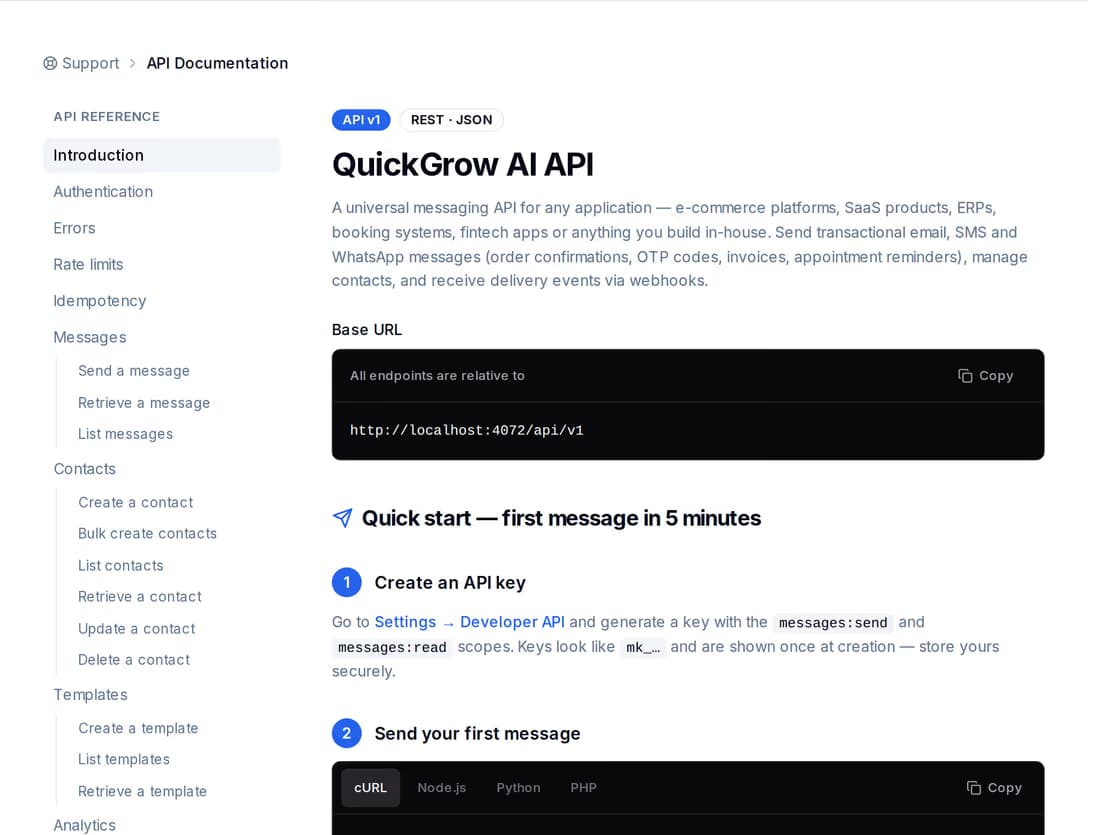
Add someone by hand while they are still standing in front of you, or have your own system push contacts across as they sign up. Either way the same duplicate check runs, so the same person does not arrive twice by two different routes.
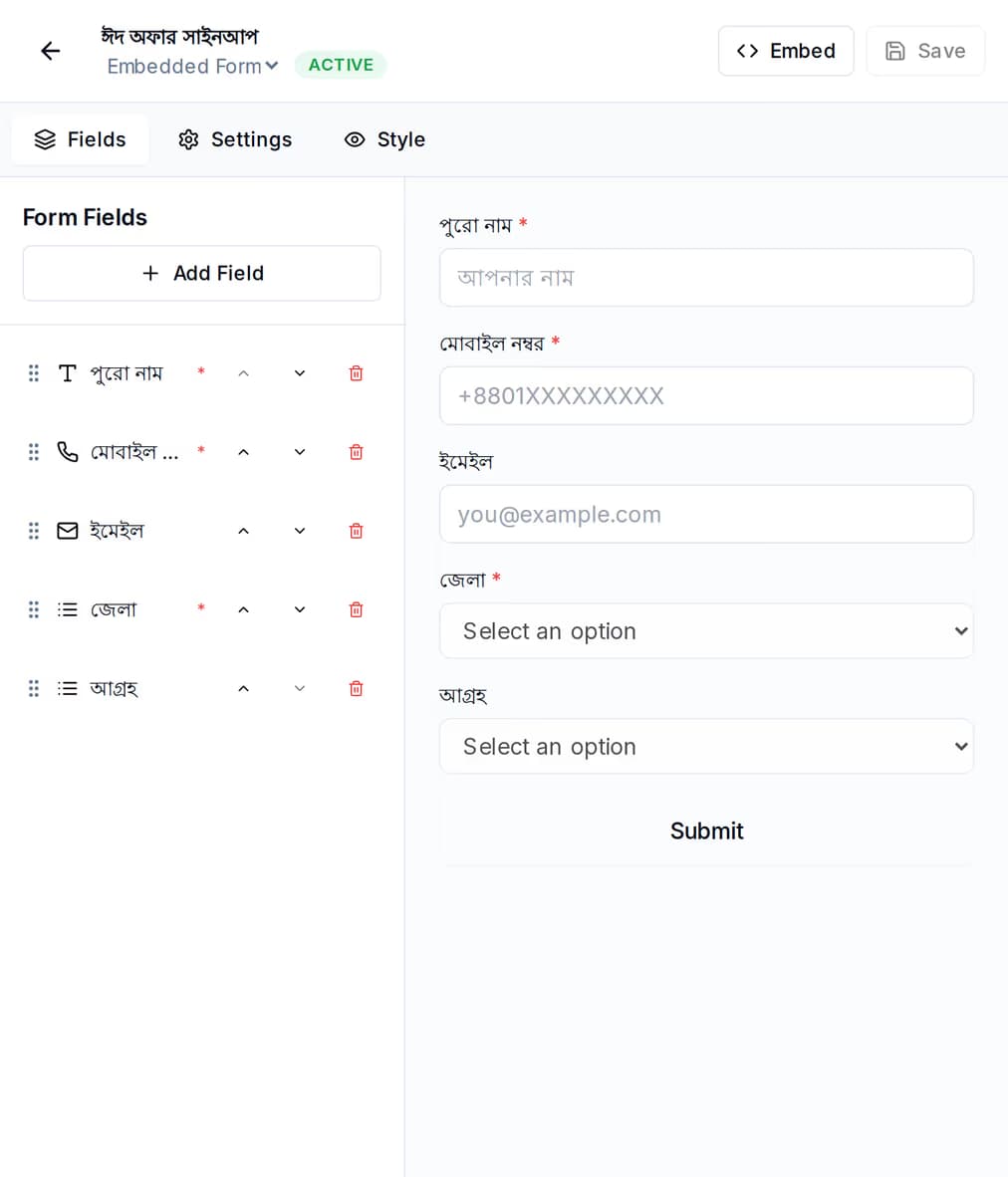
Build a form, drop it on any website with one script tag, and every submission is stored with the time, the page it came from and the answers given. Be clear on what happens next, because this is where most tools overpromise: a submission is a submission. It does not become a contact until you make it one.
Forms, on-site popups and landing pages all live in Growth, with A/B tests and conversion tracking of their own.
Consent here is a record with a date on it, kept per channel and per type, and it is read at send time rather than filed away.
Each record holds the channel it covers, whether it is marketing or transactional, how it was collected, the address it was collected from, which version of the wording the person saw, and when. Withdrawing adds the date and the method, and the record stays as history.
It is off unless you switch it on. With it on, the consent sits pending and the contact gets a confirmation email whose subject and wording you write. Their click records the time and the address it came from, then activates the consent. The link works once.
An SMS or WhatsApp message to a contact with no active consent for that channel is stopped before it leaves — then the quiet-hours window set for their country, then the per-contact frequency cap. You get the reason it was blocked, not a silent failure.
Two different things, and worth knowing which one you are being asked for.
Name, email and phone are encrypted where they sit. Searching matches a one-way fingerprint of what you typed, so a lookup never has to read the stored value back. In practice that means search finds a whole email address or a whole phone number rather than part of one.
If you run more than one brand or shop from one account, each has its own list and cannot see the others. Contacts are shared across brands only when you import them that way on purpose.
Viewing, creating and editing, deleting and exporting contacts are separate permissions you grant per role — and none of them is permission to send a campaign. A new assistant can tidy the list without being able to message it.
Export the list to a CSV file whenever you want, filtered by status or by channel. Getting your own data out is a button, not a support ticket.
No. Every row is matched against your list on its email address. By default a match is left alone and counted as skipped; turn on update-existing and it is updated in place instead, with the tags from this import merged into the ones already there. The same email appearing twice inside one file is caught as well.
A CSV import needs a usable email on every row — anything else is listed in the report with its row number and the reason, and the rest of the file still imports. Contacts with only a phone number are perfectly valid, but you add those one at a time or through the API rather than by CSV.
Only if you have built a journey that starts on a new contact. That is the one thing that happens by itself: a genuinely new row from a CSV import fires the contact-created trigger. Skipped and updated rows do not, and a contact created through the API does not either.
Import what you already have, know exactly what landed, and start from a list you can stand behind.
 CyberCraft BangladeshQuickGrow AI
Run every channel from one platform. Bring your own SMTP, SMS gateway, and WhatsApp number — or use ours.
See pricing →