The people who bought
Every customer record in your store, with the name, email address and the billing details WooCommerce holds against it. After the first run, only the ones that changed since the last successful read come back.
QuickGrow reads your customers, orders and products straight out of WooCommerce over the REST API that is already built into it. Nothing to install, no theme edit, no WordPress password handed over — a store address and a read-only key pair, and the store is read again every six hours.
QuickGrow calls the WooCommerce REST API on your own site and reads three collections. It is a one-way street: everything moves from your store into QuickGrow, and nothing is ever written back.
Every customer record in your store, with the name, email address and the billing details WooCommerce holds against it. After the first run, only the ones that changed since the last successful read come back.
Orders with their status, totals, line items and dates. Later runs ask WooCommerce only for the orders raised or changed since the last successful read, so a big store does not get re-read from the beginning every time.
The full product list, re-read on every run — so a price change, a new item or something you took off sale is never left behind. QuickGrow can also fetch one product on its own by its WooCommerce ID.
No app store, no approval queue, no developer. If you can reach your own WordPress admin, you can finish this in one sitting.
Go to WooCommerce → Settings → Advanced → REST API. This is part of WooCommerce already. There is no plugin to buy, nothing to upload, and no marketplace app to approve.
Create a key, describe it as QuickGrow, pick the WordPress user it acts as, and set the permission to Read. WooCommerce shows you a consumer key and a consumer secret once. Copy both.
In Settings → Integrations, open WooCommerce and fill in three fields: your store address, the consumer key and the consumer secret. They are encrypted when saved and are never shown back to the browser.
The first run reads everything. From then on every switched-on store is read again automatically every six hours, and each run records how many customers, orders and products it found.
Reading the shop is worth something once you can act on it. Everything below runs on your QuickGrow contact list — built by upload, by form or popup, or pushed in from your own code — and reaches people on email, SMS and WhatsApp from one place.
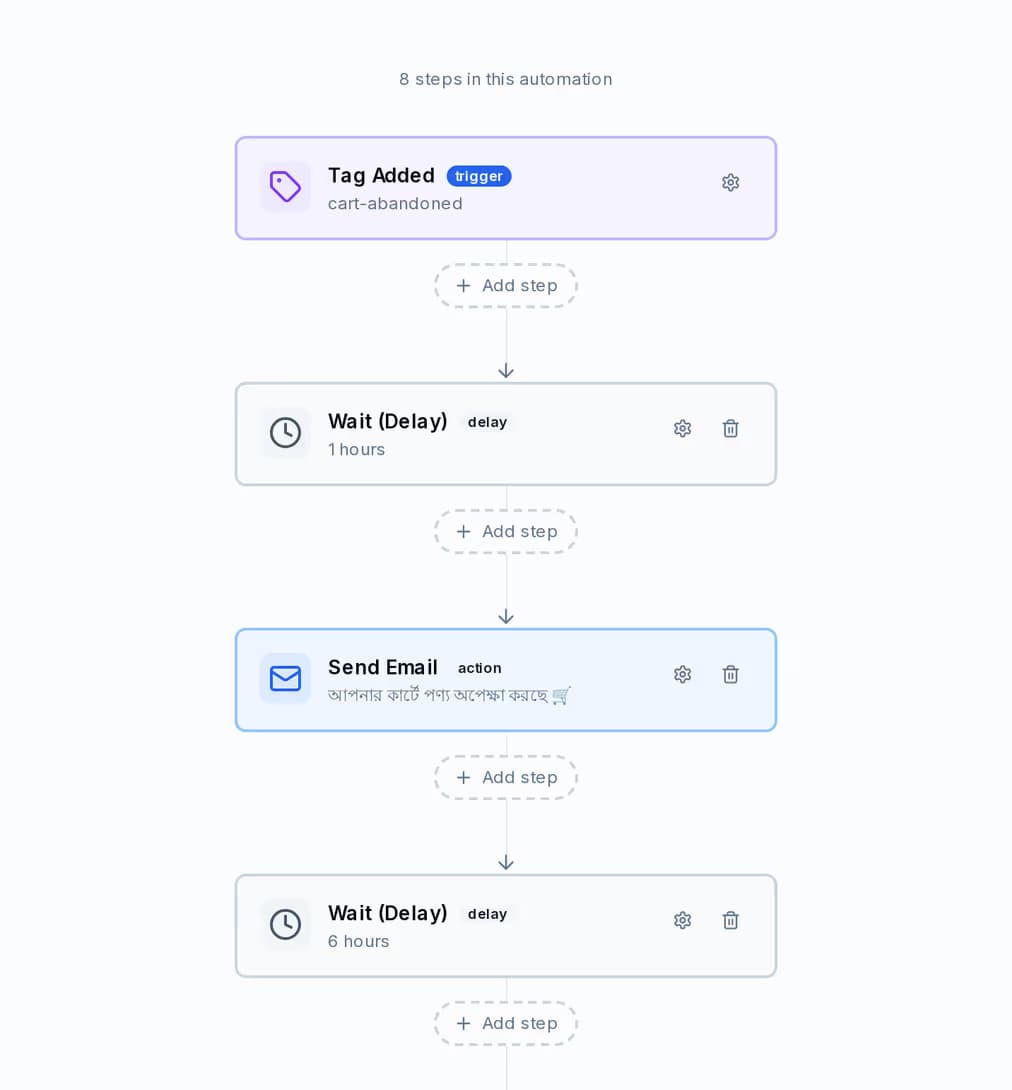
Build the follow-up once and let it run. A journey is a trigger, then steps: send on any channel, wait a real amount of time, branch on a condition, add a tag, update a field, or call a webhook of your own.
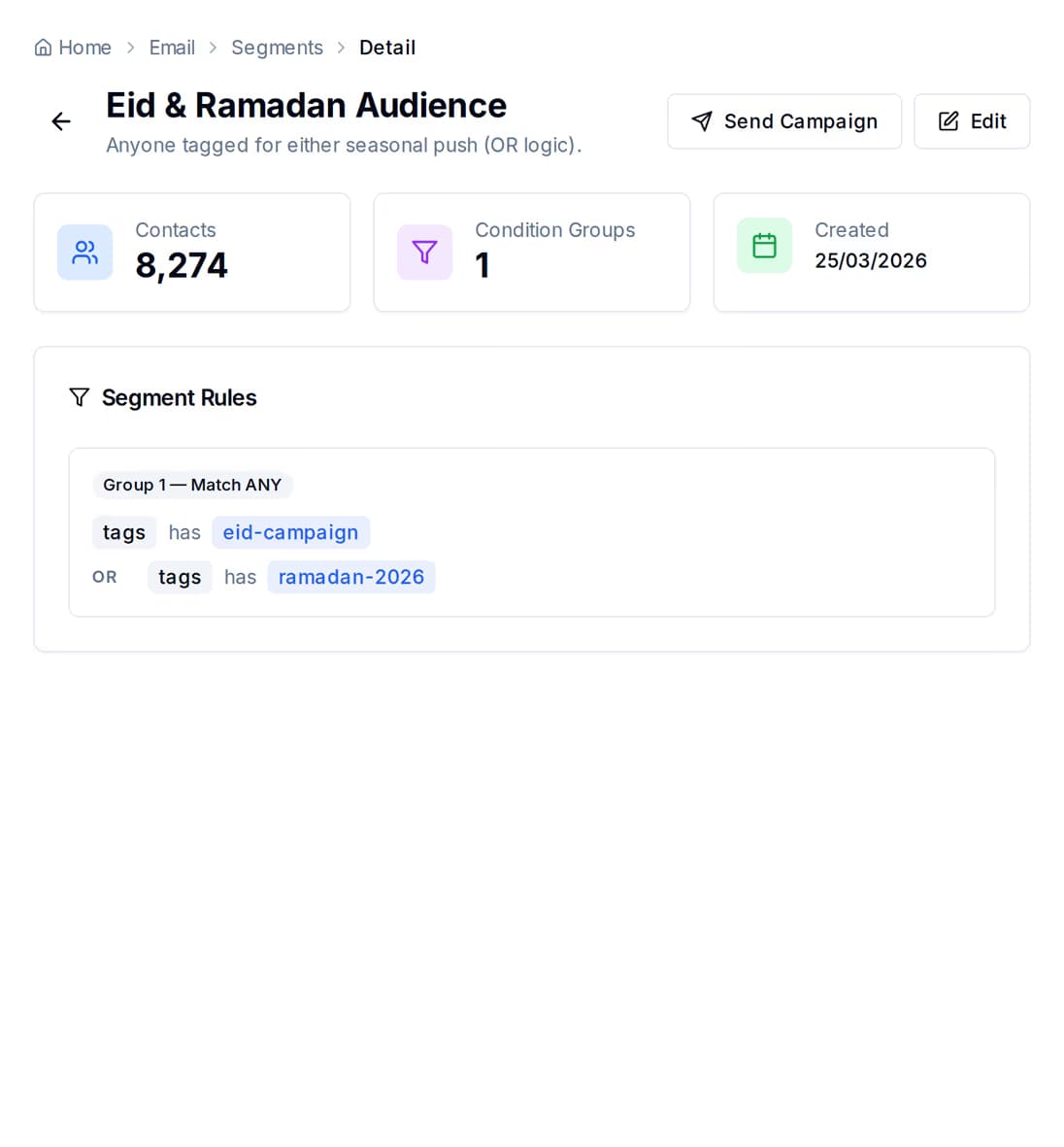
A group is a few rules, and it counts the people it matches before you send anything. Add a rule, watch the number move, then send to exactly those contacts.
Worth knowing if your site is on shared hosting: the connector asks for records in batches and keeps going until WooCommerce says there are no more pages left.
| Customers | Orders | Products | |
|---|---|---|---|
| Direction | Store → QuickGrow | Store → QuickGrow | Store → QuickGrow |
| First run | Everything in the store | Everything in the store | The whole catalogue |
| Every run after that | Only the ones changed since the last successful run | Only the ones changed since the last successful run | The whole catalogue again |
| Read in batches until the store says there are no more | Yes | Yes | Yes |
| Created, edited or deleted in WooCommerce | No | No | No |
Nothing on its own. The connector comes with the platform, and what you pay depends on how much you send and whether you bring your own mail server or SMS account.
The connector is not sold separately. You pay a platform fee that covers the tooling — contacts, groups, journeys, the shared inbox and the reports — and then for the messages you send.
Buying managed volume waives part of the platform fee. Buy across email, SMS and WhatsApp at a high enough tier and it is waived entirely. A longer billing term discounts the fee and the volume on separate ladders.
Bring your own mail server or SMS account and you pay the platform fee only. WhatsApp runs on your own number too — you pay Meta directly, at Meta's own rate, with zero QuickGrow markup and no monthly commitment.
No. WooCommerce ships with its own REST API switched on, and that is what QuickGrow talks to. You create a key pair inside your own admin at WooCommerce → Settings → Advanced → REST API and paste it into QuickGrow with your store address. Nothing is uploaded to your site and your theme is not touched.
No. The connector only reads. A key with the Read permission is all it asks for, and it never creates, edits or deletes a product, an order or a customer in WooCommerce. Your storefront and your checkout are untouched.
Every six hours, automatically, for every connection that is switched on. The first run reads everything; after that it asks WooCommerce for the orders and customers changed since the last successful run, and re-reads the catalogue in full. A run can also be started on demand through the API.
Not today. The connector reads your store and reports what each run found. Your contact list is built inside QuickGrow — upload a spreadsheet, capture people with a form or a popup, or push them in from your own code through the API. If automatic contact creation is the piece you are waiting for, tell us on the contact page and we will say where it sits.
Not from the scheduled read, which runs every six hours. Journeys in QuickGrow start from its own events: a contact created or updated, a tag added or removed, a form submitted, a campaign opened or clicked, or a date you set. For something instant, add a webhook in WooCommerce → Settings → Advanced → Webhooks — QuickGrow accepts it and checks its signature — or push the event yourself from the API or through Zapier.
Both read the same three things, read-only, on the same six-hour schedule. Two differences worth knowing. Shopify authenticates with an admin access token, WooCommerce with a consumer key and secret against your own site. And on Shopify, QuickGrow can register a webhook in the store for you; on WooCommerce you add the webhook yourself in the WooCommerce settings.
Yes. Each store is its own connection with its own name and its own key pair, and every switched-on one is read on the same schedule. Stores from different WordPress installs are fine.
The scheduled runs stop and the connection is marked inactive. Nothing further is read from your store. Revoking the key in WooCommerce → Settings → Advanced → REST API cuts it off from your end as well.
Connect WooCommerce with a read-only key pair, and reach the same customers on email, SMS and WhatsApp from one account.
 CyberCraft BangladeshQuickGrow AI
Run every channel from one platform. Bring your own SMTP, SMS gateway, and WhatsApp number — or use ours.
See pricing →