Customers
The customer records your store holds — names, email addresses, phone numbers. The first run reads them all. After that, QuickGrow asks Shopify only for the customers updated since the last successful run.
Paste your shop domain and an Admin API access token, and QuickGrow reads your customers, orders and products every six hours — then messages those buyers over WhatsApp, SMS and email from one account.
The connector reads, and only reads. No order is edited, no product is changed, no customer record in Shopify is touched. Everything moves one way: store to QuickGrow.
The customer records your store holds — names, email addresses, phone numbers. The first run reads them all. After that, QuickGrow asks Shopify only for the customers updated since the last successful run.
Orders of any status, not only the paid ones, so a cancelled or refunded order is visible too. Like customers, later runs pull just the orders that changed since last time.
Your full product list, re-read from scratch on every run so a rename or a new line never goes stale. Long catalogues are paged through 250 at a time until the last one is in.
There is no app to install from the Shopify App Store and no approval to wait for. You make a token in your own admin, paste it in, and the next scheduled run picks it up.
In your Shopify admin, under Apps and sales channels, develop an app for your own store and give it read access to customers, orders and products. Shopify hands you an Admin API access token.
Settings → Integrations → Shopify. Two fields: your shop domain (my-store.myshopify.com) and that token. Give the connection a name so you can tell your stores apart later.
The first read happens on the next scheduled run. QuickGrow reads your customers, orders and products, then records how many of each it read and the time the run finished.
From then on it repeats every six hours on its own. If you need a read sooner than that — before a big send, for example — your developer can start one through the API.
Journeys in QuickGrow start from your contacts — tag someone, or catch them on a form, and the sequence takes over. What Shopify gives you is the picture of who bought what and when, so you know who to tag.
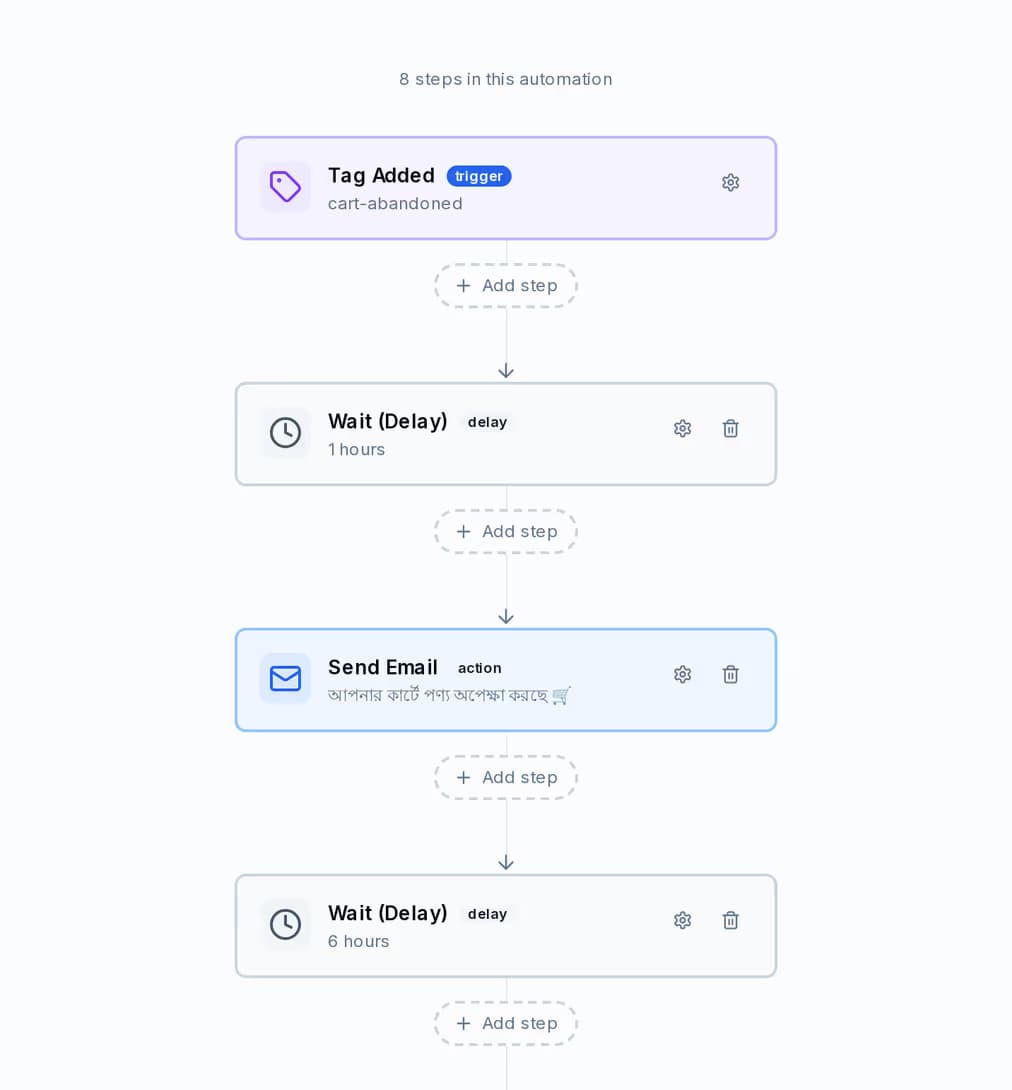
A journey can start when a contact is tagged, is created or updated, submits a form, opens or clicks a campaign, or on a date you set. From there you place the steps in the order you want and put real waits between them.
Most shops end up using all three for different jobs. This is the split that tends to work.
| SMS | |||
|---|---|---|---|
| Order and delivery updates | Utility template | Arrives without mobile data | Good for the paper trail |
| Login and one-time codes | Authentication template | Reaches any handset | Not the place for a code |
| Cart nudges and offers | Marketing template | Masking puts your shop name in the sender | Room for pictures and links |
| Win-back after a quiet spell | Marketing template | Short and direct | Best for a longer offer |
| How you pay for it | By template category, billed directly by Meta — zero QuickGrow markup | Masking volume, non-masking volume, or both | Bulk and transactional, on your mail server or ours |
No. The connector only reads. It pulls customers, orders and products out of Shopify; it never creates, edits or deletes anything there, and it does not touch your storefront.
Every six hours, automatically, for every connection that is switched on. There is no Sync button in the app today, so an immediate read has to be started through the API.
No. You create an Admin API access token inside your own Shopify admin and paste it into QuickGrow along with your shop domain. Read access to customers, orders and products is all it needs, and you never hand over your Shopify password.
Not today. The connector reads your store and reports what each run found. Contacts, tags and segments are managed inside QuickGrow — by import, by form or popup, or through the API. If automatic contact creation is the piece you are waiting for, say so on the contact page and we will tell you where it sits.
Yes. Each store is a separate connection with its own name and its own token, and every active one is synced on the same six-hour schedule.
The scheduled runs stop and the connection is marked inactive. Nothing further is sent to or read from Shopify. Revoking the token in your Shopify admin cuts it off from that end too.
Shop domain, Admin API access token, done. Email, SMS and WhatsApp all sit in the same account, on one bill.
 CyberCraft BangladeshQuickGrow AI
Run every channel from one platform. Bring your own SMTP, SMS gateway, and WhatsApp number — or use ours.
See pricing →